
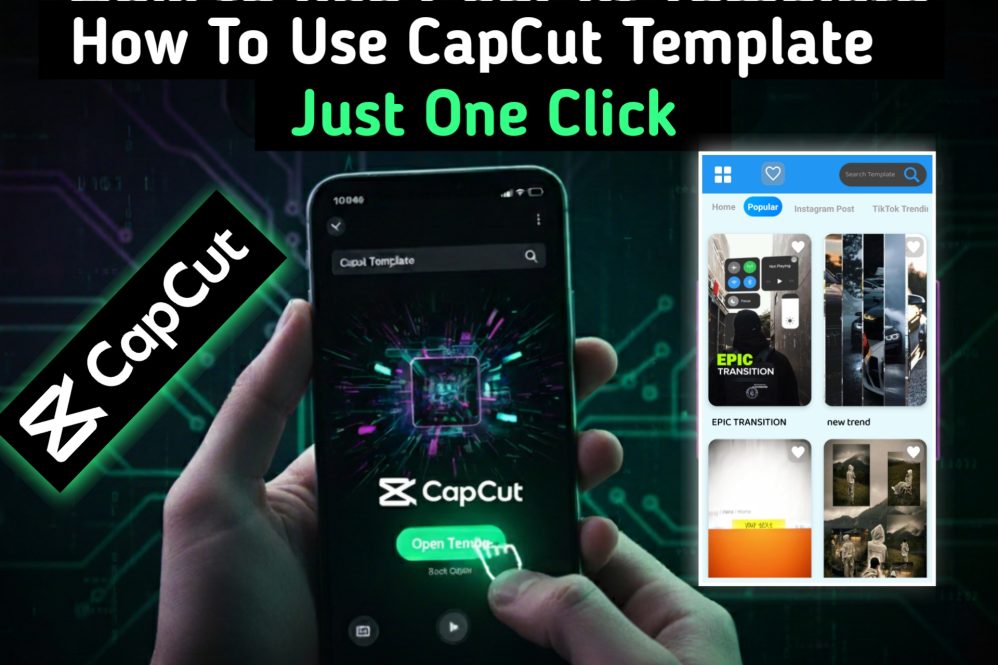
Hey, This Post is About How To Edit Video Using CapCut Template. Want to create professional-looking videos in minutes? In this tutorial, we’ll show you how to edit videos using CapCut templates — a quick and easy way to produce stunning content for TikTok, Instagram, YouTube, and more. Whether you’re a beginner or looking to speed up your editing process, this step-by-step guide will walk you through everything you need to know to get started with CapCut templates today. How To Edit Video Using CapCut Template.
Unlimited AI Photo Editing Prompt App ⬇⬇
How to Edit Video Using CapCut Template | Bangla Tutorial ⬇⬇
How To Edit Video Using CapCut Template |
If you’re not familiar with the Bengali language, don’t worry — follow the steps below to start using the CapCut Template App easily.
I currently offer two CapCut Template Apps, and both follow the same editing process. Here’s how you can use them step by step: ⬇⬇
Step 1: Install the CapCut Template App
We have 2 CapCut Template apps available on the Google Play Store for you. You have to install either one. One is the CVT Template, and the other is the Cap Template App.
Step 2: Install the CapCut App
Before you begin, make sure the CapCut App is installed on your phone. It’s essential for one-click video editing using the Capcut Template.
Step 3: Open Your Preferred CapCut Template App
Choose any one of the two CapCut Template Apps I’ve provided. Open the one that suits your style best — both apps are designed for a smooth user experience.
Step 4: After opening the app, you will get unlimited CapCut templates inside the app. In the Header Option, you will get several categories of your choice. Now, open any template according to your choice for one-click video editing. ⬇⬇
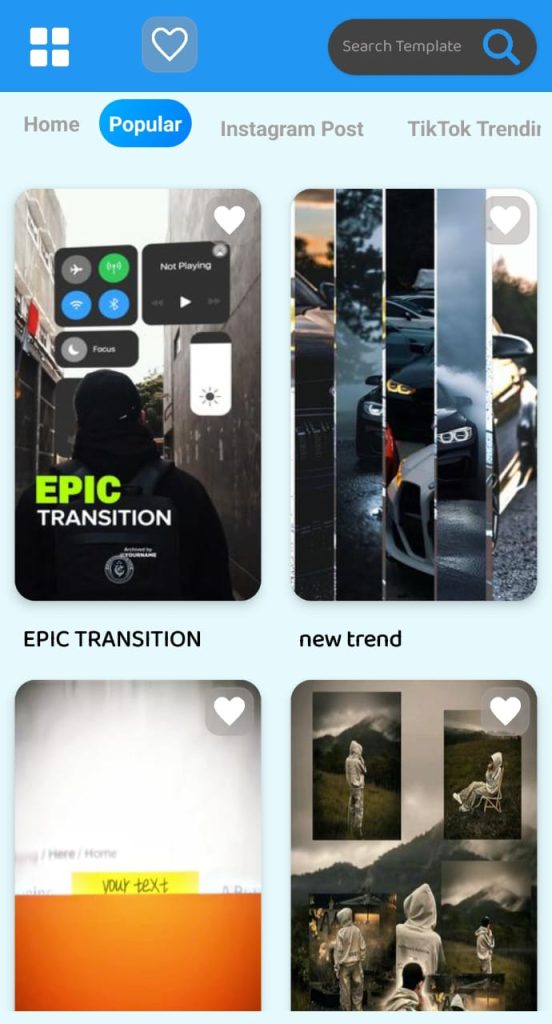
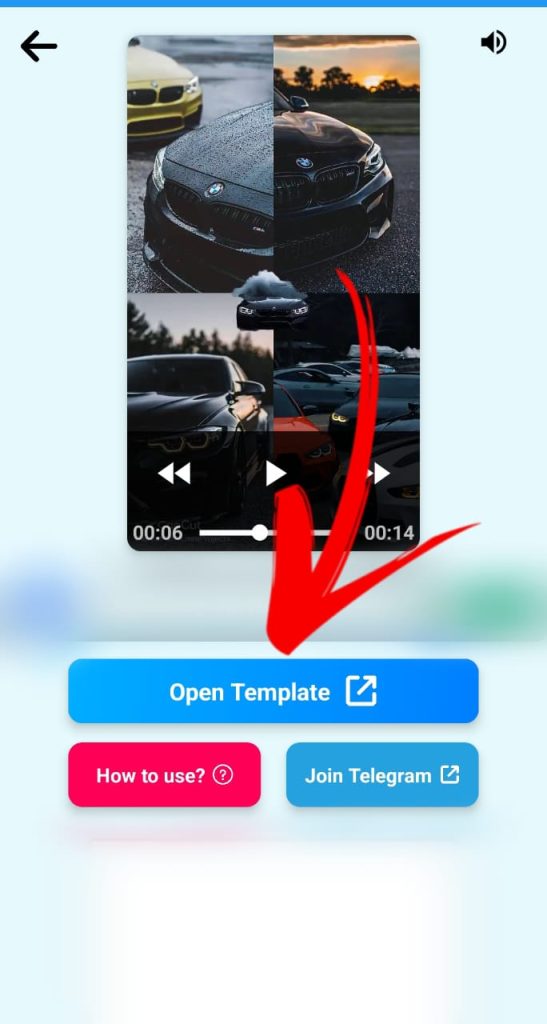
Step 5: After opening the template, you can see the editing preview of the template. Click the open template button below to open the template. ⬇⬇
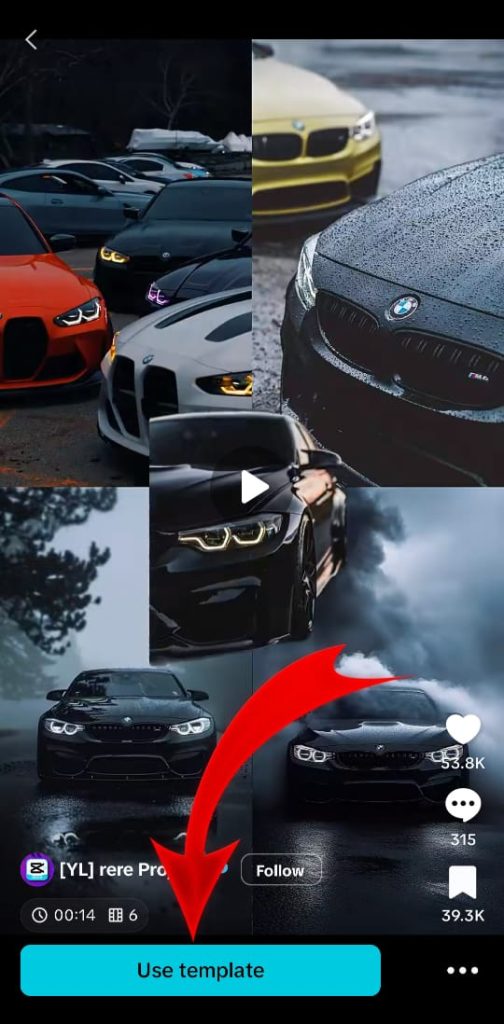
Step 6: After clicking, you can now see the template’s last preview and full details. Finally, click on the Use template button to edit the video with the template. ⬇⬇
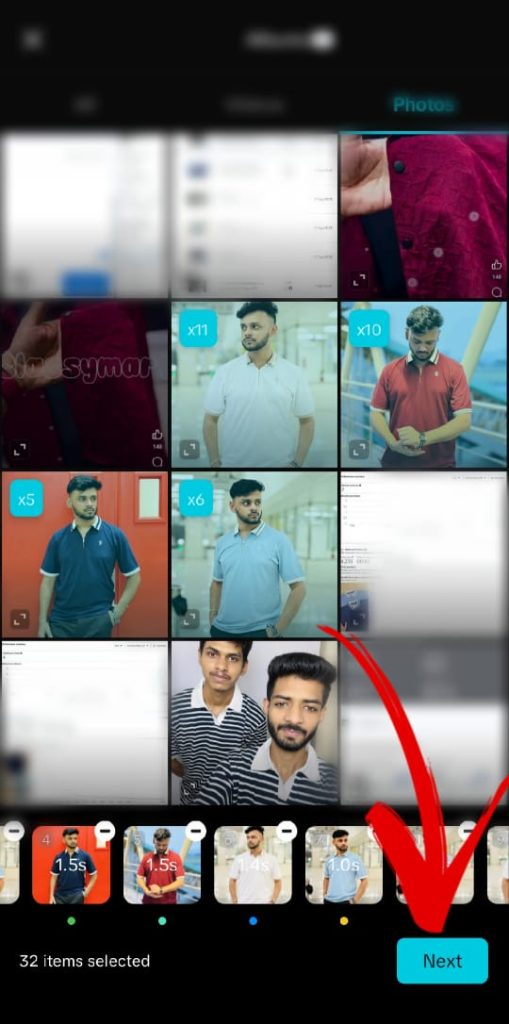
Step 7:After clicking on the Use Template button, the template will be automatically imported into the CapCut App. And immediately your Photo, Video Album/Gallery will be opened. Then you select your photo/video and click the next button below. ⬇⬇
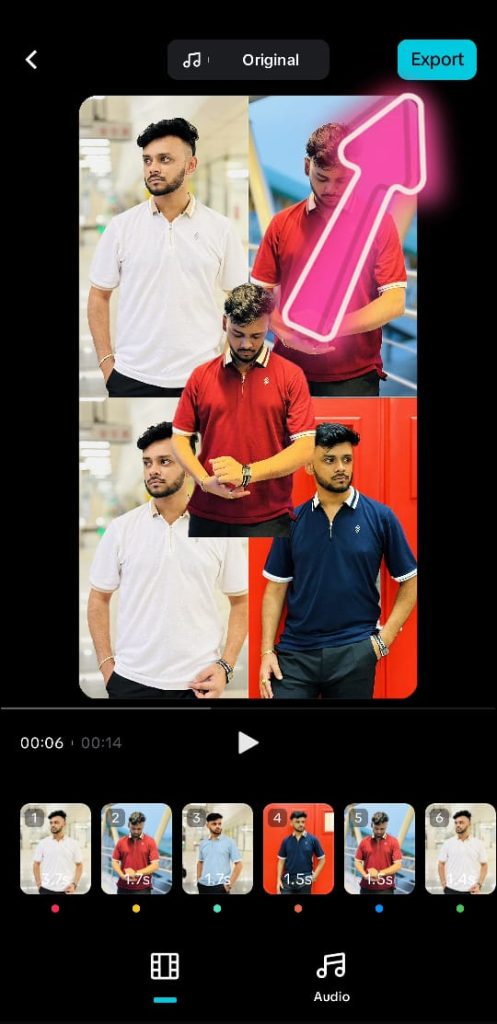
Step 8: Then the video will be edited automatically. You can see the preview. Finally, you will click on the Export Button. ⬇⬇
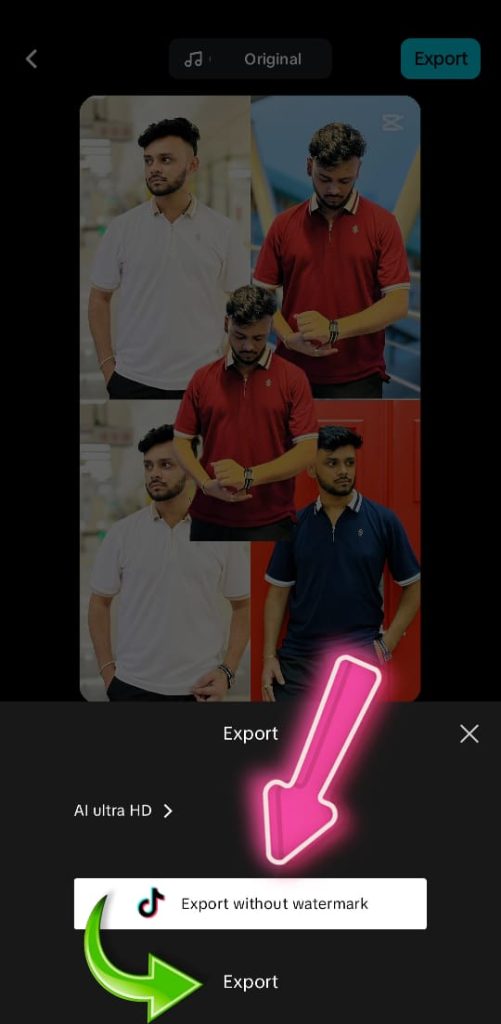
Step 9: Then click on the Export Without Watermark or Export button below. ⬇⬇
Step 10: Finally, the video will be saved in your phone storage within a few seconds.
🅾 My Instagram. You can follow me on Instagram: ⬇⬇
How To Edit Video Using CapCut Template.
Enjoy premium-level video editing in one click using your favorite template.
See More Post: Best Ai Profile picture Generator
Using CapCut templates makes the video editing process effortless and beginner-friendly — with just a few taps, you can select a ready-made template, insert your photos or videos, and instantly create high-quality, professional-looking content without any prior editing skills. How To Edit Video Using CapCut Template.
About CapCut ⬇⬇
CapCut is a powerful and user-friendly video editing app developed by ByteDance, the creators of TikTok. It offers a wide range of editing tools, filters, transitions, music, and text options that make video creation simple for both beginners and professionals. One of its standout features is the CapCut Template, which allows users to create stunning videos with just one click using pre-designed formats. With thousands of trending templates available, users can effortlessly edit videos for social media, vlogs, or personal projects. Whether you’re editing short reels or full-length videos, CapCut makes the process fast, creative, and hassle-free. CapCut is a free, easy-to-use video editing app that helps users create professional-looking videos quickly using templates and effects. How To Edit Video Using CapCut Template.
How To Edit Video Using CapCut Template.


